
The panels
Five panels dock down the right-hand side:
| Panel | What it holds |
|---|---|
| Properties | Everything about the active layer — kind, transform, align, masks, styles, and the controls specific to a text, shape, adjustment or smart-object layer. A Document tab beside it holds the document’s own properties. |
| Navigator | A thumbnail of the whole document with a rectangle marking what is on screen. |
| Swatches | Saved colours. |
| Layers | The stack, with blend mode, opacity and locks. |
| History | Every step you have taken, including the undone ones. |
Window in the menu bar toggles each one by name.
Rearranging
- Drag a panel’s header to move it up or down the stack.
- Drag it out of the dock to float it in its own window; drag it back to re-dock it.
- The header buttons move a panel up or down, collapse it, or tear it off.
- Panel heights are draggable and are remembered.
At least one panel always stays docked.
Workspace presets
Window ▸ Workspace switches between saved arrangements:
- Essentials — the default: Properties, Navigator, Swatches, Layers, History.
- Compact — fewer panels, more canvas.
- Painting — arranged for brush work.
- Factory defaults — puts everything back where it started.
Your arrangement is saved as you change it and restored at the next launch.
The History panel
Every step is listed, newest last, with the family it belongs to in a muted column on the right.
Click a step to walk the document to that point. Steps after the cursor stay in the list, dimmed, the way Photoshop greys the steps ahead of you — clicking one of those walks forward again rather than doing nothing.
Ctrl Z and Ctrl Shift Z move one step at a time.
How many steps are kept is set in Preferences; the default is 128.
The command palette
Ctrl Shift P opens a filterable list of every action in the application, each with its menu and its keyboard chord.
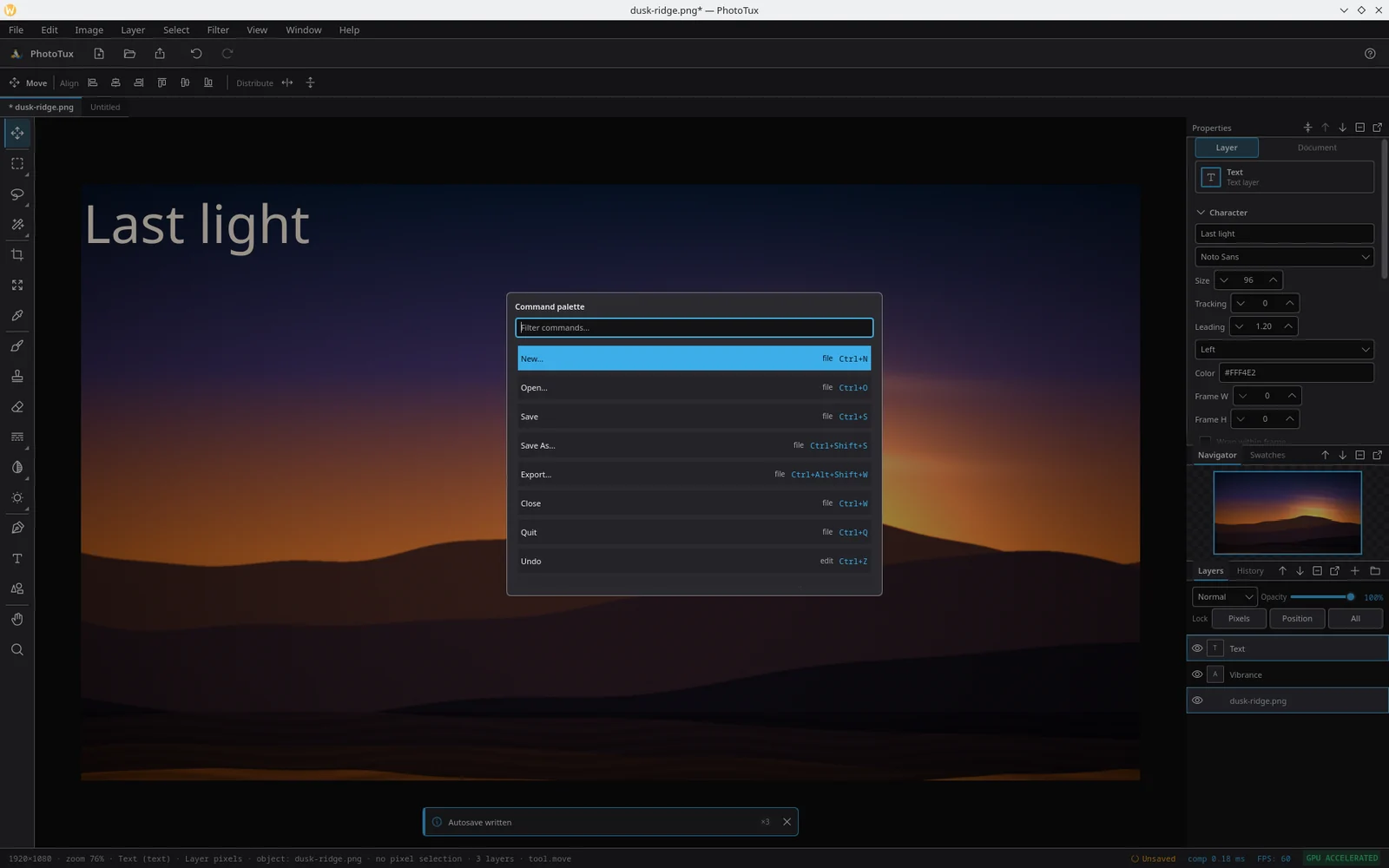
Type to filter, arrow keys to move, Enter to run. It is the fastest way to find something whose menu you have forgotten, and the fastest way to learn a shortcut you keep looking up.
Preferences
Edit ▸ Preferences (Ctrl ,).
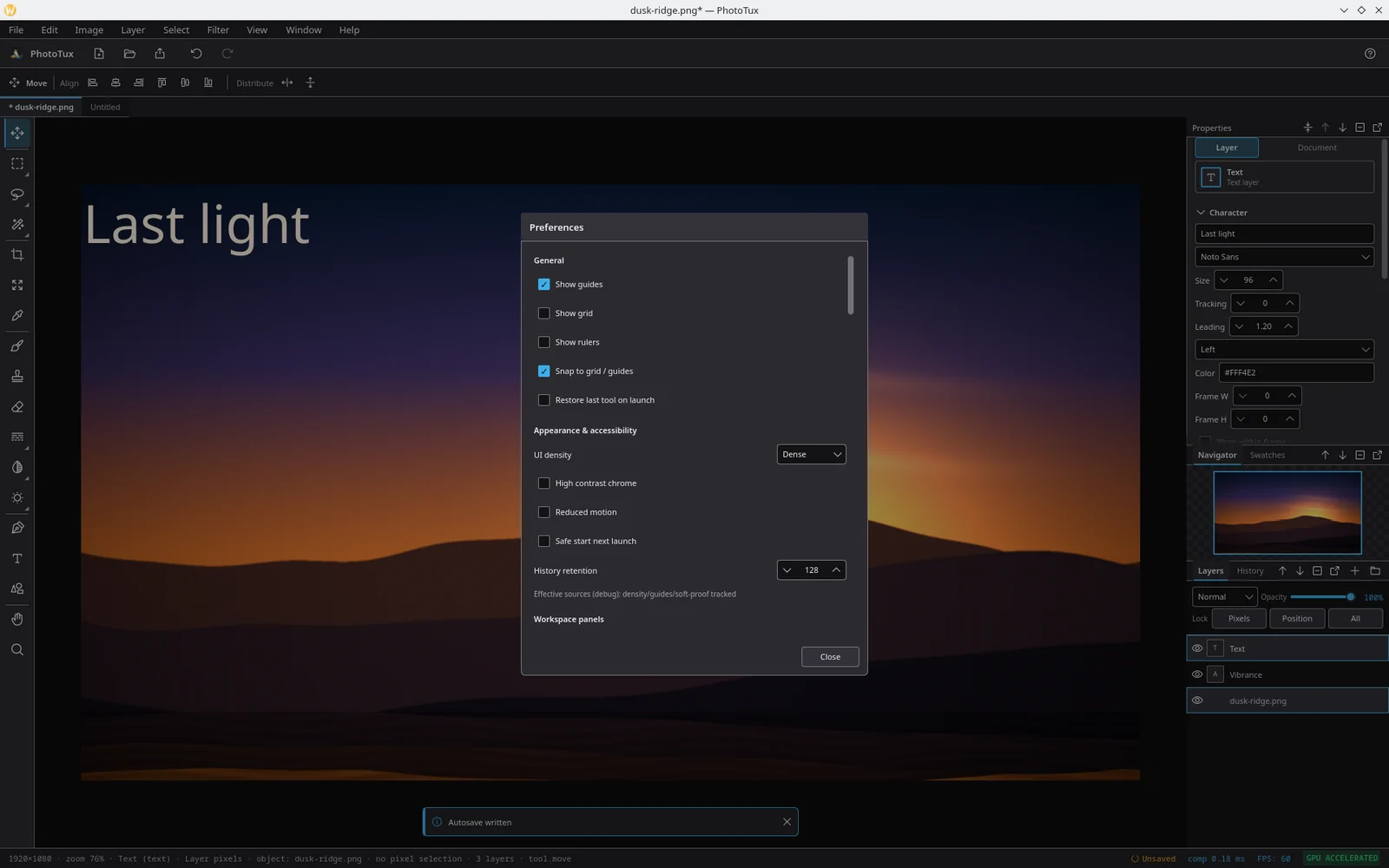
General
| Setting | What it does |
|---|---|
| Show guides | Draws guides on the canvas. |
| Show grid | Draws the grid. |
| Show rulers | Puts rulers along the top and left edges. |
| Snap to grid / guides | Moves and transforms snap to them. |
| Restore last tool on launch | Starts with the tool you finished with, rather than the default. |
Appearance and accessibility
| Setting | What it does |
|---|---|
| UI density | Dense or Comfortable. Comfortable scales spacing, control heights and type by about 15% — worth trying on a high-resolution display. |
| High contrast chrome | Raises the contrast of borders, text and icons throughout the shell. |
| Reduced motion | Removes the transitions on docks and panels. Respect for the system setting is separate; this is the in-application switch. |
| Safe start next launch | Starts the next session with default panels and no restored document. Use it if a saved workspace is causing trouble. |
| History retention | How many history steps are kept per document. Default 128. |
Keyboard shortcuts
Every action can be rebound. Assigning a chord that is already in use tells you what currently owns it rather than silently taking it, so you find out about a collision at the moment you create one.
+ is a valid key: Ctrl++ binds Ctrl plus the plus key, not a
dangling modifier.
Accessibility
- Every interactive control is reachable by keyboard, and focus is always visible.
- Panels, tools and dialogs carry accessible names for AT-SPI, so a screen reader announces what a control is rather than “button”.
- High contrast chrome and Reduced motion are in Preferences, above.
- The application reports typed status rather than crashing when the accessibility service, the desktop portal, the colour service or a tablet is absent.
If something is unreachable or unlabelled, that is a bug worth reporting.