
A PhotoTux document is a stack of layers composited from the bottom up, on the GPU. The Layers panel on the right shows the stack with the topmost layer first.
The seven kinds of layer
| Kind | What it is |
|---|---|
| Raster | Pixels. What a painted stroke, a pasted image or an opened photograph becomes. |
| Group | A container for other layers, with its own blend mode and opacity. |
| Text | Editable words. Becomes pixels only when you bake it. |
| Shape | An editable path with a fill and a stroke. |
| Fill | A single flat colour, stored as data rather than as pixels. |
| Adjustment | A non-destructive change applied to everything below it. |
| Smart object | Wrapped pixels, so a transform re-applies to the source rather than accumulating on it. |
Each kind carries a badge in the Layers panel, so you can tell at a glance what a row is without reading its name.
Adding and removing layers
- Layer ▸ New Layer (Ctrl Shift N) — an empty, transparent raster layer.
- Layer ▸ Duplicate Layer (Ctrl J) — a copy directly above its source, carrying opacity, blend mode, visibility, clipping, locks and the mask.
- Layer ▸ New Fill Layer — a flat colour.
- Layer ▸ Delete Layer — removes the active layer. A document always keeps at least one.
New layers are transparent. A new document starts with an opaque white Background, the way Photoshop’s does, so your first stroke has something to composite against.
A duplicate lands directly above its source, not on top of the stack. A copy that jumped over four layers would composite differently from the one you asked for.
Order, visibility and opacity
Drag a layer in the panel to reorder it. The eye icon beside each row toggles visibility — a hidden layer contributes nothing to the composite and is skipped by Merge Visible and Flatten.
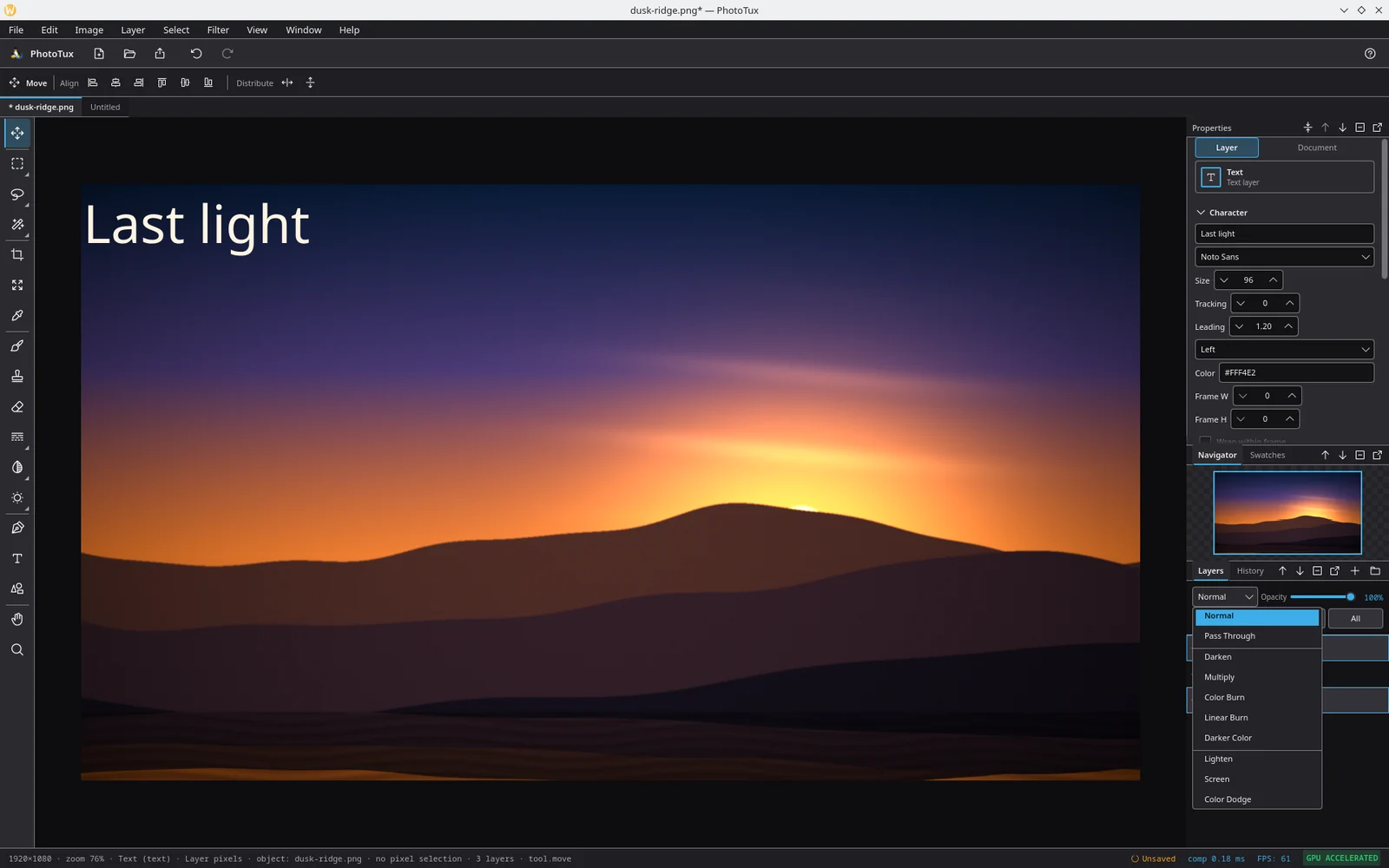
Above the list sit the two controls that apply to the active layer:
- Blend mode — how the layer combines with what is under it. Twenty-eight modes, banded by family. See the blend mode reference.
- Opacity — 0 to 100%, applied after the blend.
Locks
Three buttons under the blend row:
- Pixels — the layer cannot be painted on.
- Position — the layer cannot be moved or transformed.
- All — both.
Groups
Layer ▸ New Group puts the selected layers into a folder. Layer ▸ Ungroup takes them out again.
A group has its own blend mode and opacity. Set it to Pass Through — the default — and the layers inside composite as if the group were not there. Set it to anything else and the group is composited on its own first, then blended as a unit.
Merging does not cross a group boundary. Merge Down and Merge Visible refuse groups and anything inside one: a group is a parent in a flat list, so merging across the boundary would move layers out of their group as a side effect. Ungroup first if that is what you want.
Clipping masks
Layer ▸ Create Clipping Mask confines a layer to the shape of the layer directly below it. The clipped layer’s row indents in the panel.
This is how you apply an adjustment to one layer instead of to everything under it: put the adjustment above the layer, then clip it.
Layer masks
A mask hides parts of a layer without deleting them. Black hides, white shows, grey is partial.
- Layer ▸ Mask ▸ Add Mask — a fully white mask, hiding nothing.
- Layer ▸ Mask ▸ Delete Mask — throws it away.
- Layer ▸ Mask ▸ Toggle Mask Enabled — switches it off without losing it.
- Layer ▸ Mask ▸ Apply Mask — bakes the mask into the pixels.
- Layer ▸ Mask ▸ Add Vector Mask — a mask driven by a path rather than by pixels.
Masks and selections convert both ways:
- Select ▸ Selection to Mask writes the current selection into the active layer’s mask.
- Select ▸ Mask to Selection loads the active layer’s mask back into the selection.
Painting on a mask is painting in greyscale — see selections and masks.
Layer styles
Layer ▸ Layer Style adds an effect drawn around the layer’s own pixels. Eight are available:
- Drop Shadow and Inner Shadow
- Outer Glow and Inner Glow
- Stroke
- Color Overlay and Gradient Overlay
- Bevel
Each is re-editable from the Properties panel, can be switched off without being removed, and can be reordered against the others.
Aligning and distributing
With the Move tool active the options bar fills with alignment buttons, and the same operations are in Layer ▸ Align and Layer ▸ Distribute.
With one layer selected they align it to the canvas. With more than one they align the layers to each other, using each layer’s measured content rather than its bounding box — an empty margin around a shape does not push it off the edge you asked for.
Merging and flattening
Six operations, each replacing what it consumes with one fresh layer and recording a single undo step.
| Command | Shortcut | What it does |
|---|---|---|
| Merge Down | Ctrl E | Composites the active layer onto the one below it. Refuses a hidden layer — merging something you cannot see is not an edit you can check by looking. |
| Merge Visible | Ctrl Shift E | Composites every visible layer into one, keeping the hidden ones. |
| Flatten Image | — | Composites everything visible into one layer and discards the hidden ones. |
| Bake Text | — | Turns a text layer into pixels. |
| Rasterize Shape | — | Turns a shape layer’s path into pixels. |
| Rasterize Smart Object | — | Turns a smart object into pixels and drops its source. |
All of these are undoable, including the rasterize family: undo brings back the words, the editable path or the smart object’s original pixels.
Merging is destructive to the layer stack, not to your history. Undo puts
it back — but only while the document is open. Once you have closed and
reopened it, the merged layers are gone. Save a .ptx before a big merge.
Blend If
The Blend If control in the Properties panel restricts where a layer contributes, by tone. Two ranges — one read from the layer, one from the composite underneath — decide which brightness values blend and which are skipped. It is the quickest way to knock a bright sky out of a layer without drawing a selection.