
There are two different things you can resize: a layer and the document. Mixing them up is the most common cause of a confusing result, so the menus keep them apart.
- Edit ▸ Transform and the Free Transform tool change a layer.
- Image ▸ Image Size and Image ▸ Canvas Size change the document.
Moving a layer
The Move tool (V) drags the active layer. Its options bar holds the align and distribute buttons; see aligning and distributing.
Free Transform
Free Transform (Ctrl T) puts a handle box around the active layer. Drag the handles to scale, drag outside a corner to rotate, and drag inside to move. Apply in the Properties panel commits it as one history step; Cancel discards it.
Repeated transforms on a raster layer lose detail. Each commit resamples the pixels, and detail thrown away by a scale-down does not come back on the way up. If you expect to transform something more than once, convert it to a smart object first.
Flipping a layer
Edit ▸ Transform ▸ Flip Horizontal and Flip Vertical mirror the active layer.
These flip one layer. To mirror the whole document, use Image ▸ Image Rotation ▸ Flip Canvas Horizontal or Flip Canvas Vertical. The two sets sit in different menus for the same reason Photoshop puts them there: they are different operations that share a name.
Cropping
The Crop tool (C) draws a rectangle over the document; commit it and everything outside is discarded. Crop changes the document extent, so it affects every layer.
Image Size
Image ▸ Image Size (Ctrl Alt I) resamples the document to new pixel dimensions. Every layer and every mask is resampled together — a mask left at the old resolution would no longer line up with the layer it belongs to.
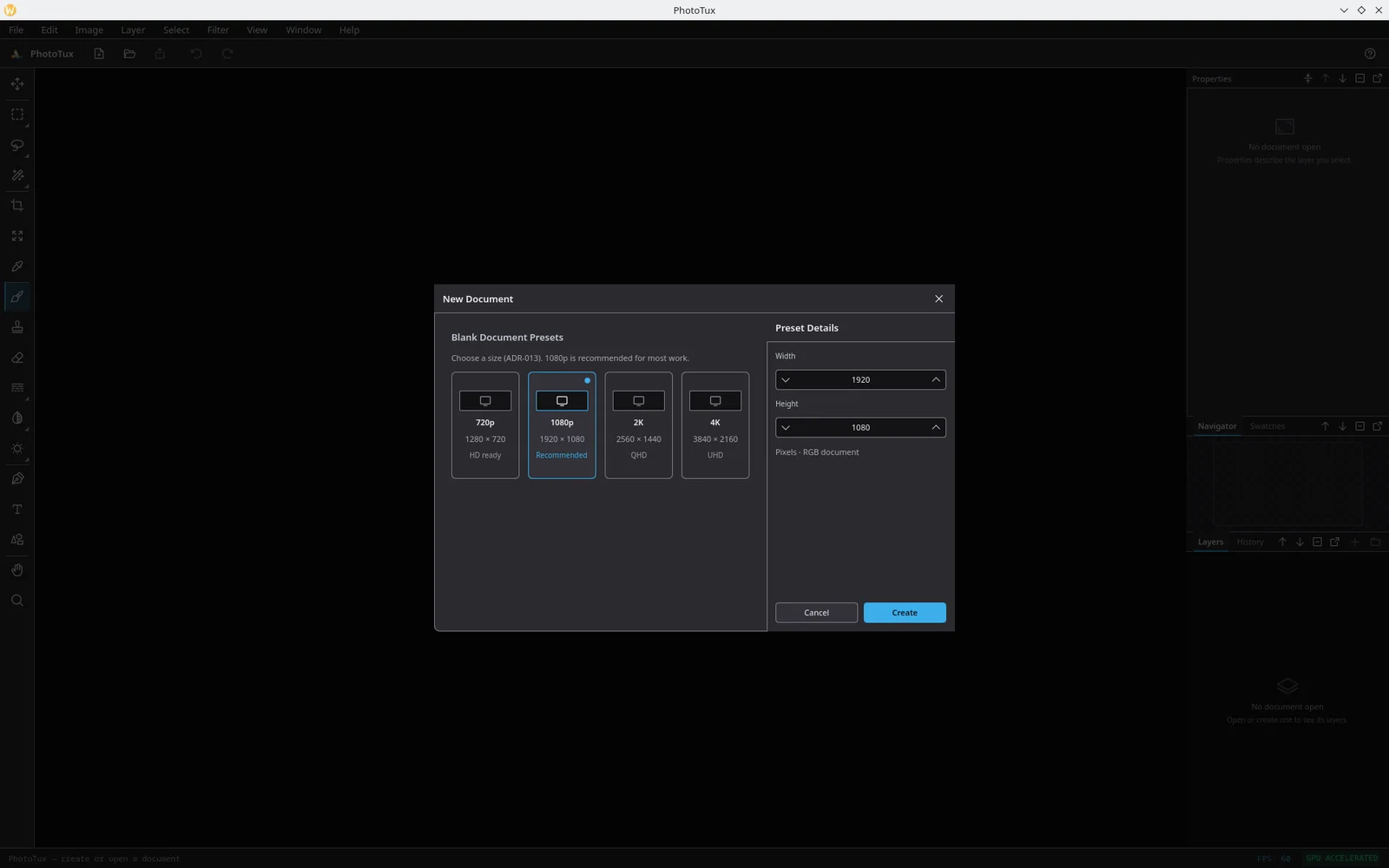
- Constrain proportions ties the two fields to the aspect ratio the dialog opened on, so a chain of round trips through width and height does not drift.
- Shrinking box-averages; growing samples bilinearly and clamps at the edge, so an upscaled image does not fade out at its border.
Undo restores the original pixels.
Canvas Size
Image ▸ Canvas Size (Ctrl Alt C) changes how much room there is around the image without resampling anything. Growing the canvas adds transparent space; shrinking it cuts off whatever falls outside.
The nine-cell anchor grid decides where the existing image sits in the new extent — top-left keeps the image in the corner and adds space to the right and below, centre spreads the change evenly.
Rotating the canvas
Image ▸ Image Rotation holds the whole-document operations, in Photoshop’s order:
- 180°
- 90° Clockwise
- 90° Counter Clockwise
- Flip Canvas Horizontal and Flip Canvas Vertical
A quarter-turn swaps the canvas axes; 180° does not. Each is one history step and one document rebuild, however many quarter-turns it is worth.
Guides and rulers
View ▸ Show Rulers puts rulers along the top and left edges. View ▸ Show Guides shows guides, and New Vertical Guide / New Horizontal Guide add them; Clear Guides removes them all.
Snapping to the grid and to guides is switched on in Preferences.